Toolbar & side panel
The toolbar
When enabled, KeepaVault injects a slim toolbar at the top of Keepa Product Finder. It gives you quick access to your presets without opening the popup.
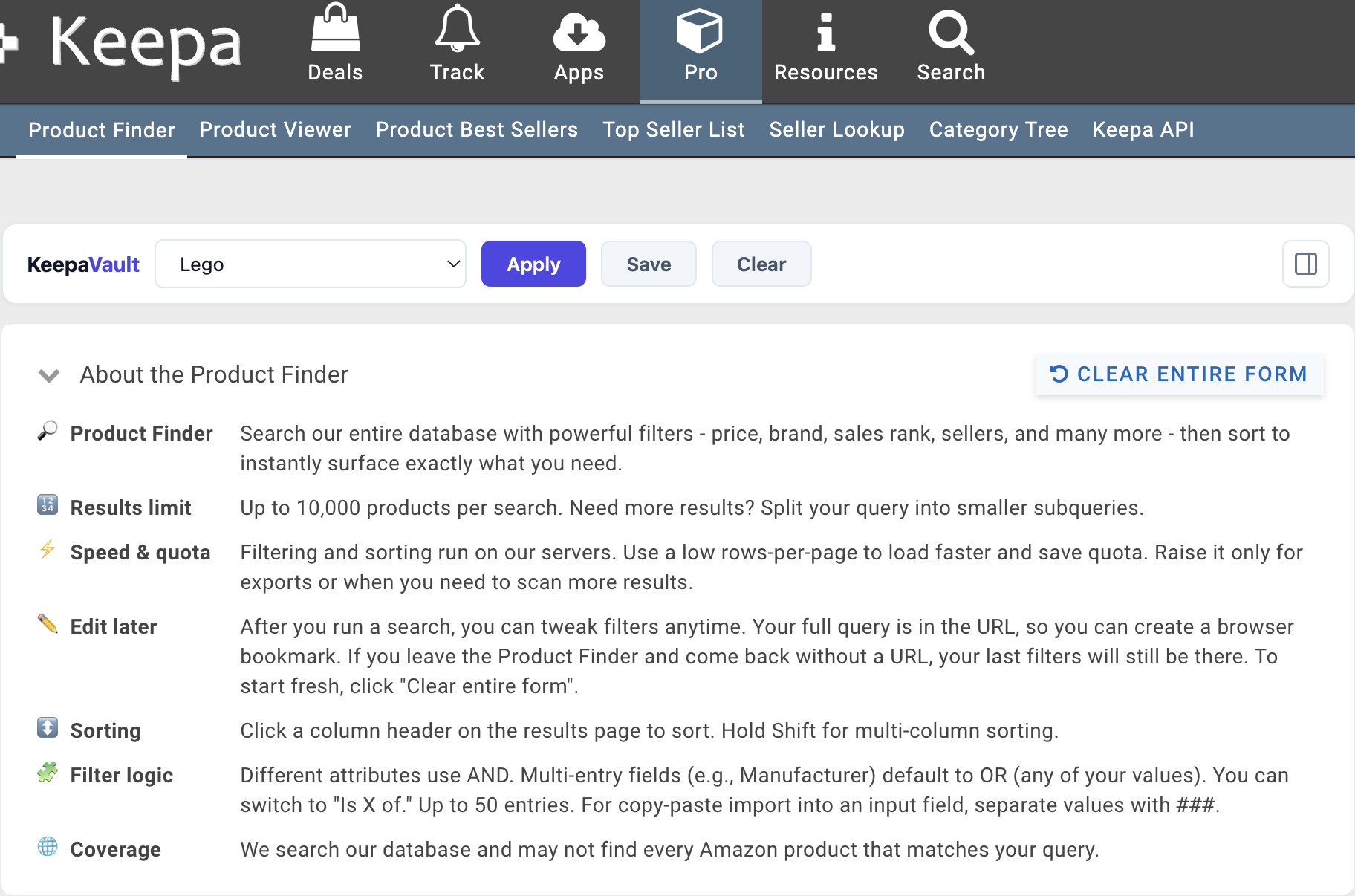
The toolbar has:
- Preset dropdown — select any preset from your library, sorted by most recently applied.
- Apply — loads the selected preset’s filters onto the page.
- Save — saves the current Keepa filters as a new preset (opens the save dialog).
- Clear — resets all Keepa Product Finder filters to their defaults.
Enabling the toolbar
The toolbar is on by default. To toggle it:
- Open KeepaVault (popup or side panel).
- Go to Settings.
- Toggle Show toolbar on Keepa.
When off, the toolbar is completely removed from the Keepa page — no leftover HTML, no layout shift.
The side panel
Chrome’s side panel lets you keep KeepaVault open alongside Keepa in the same browser window. Your full preset list stays visible while you work.
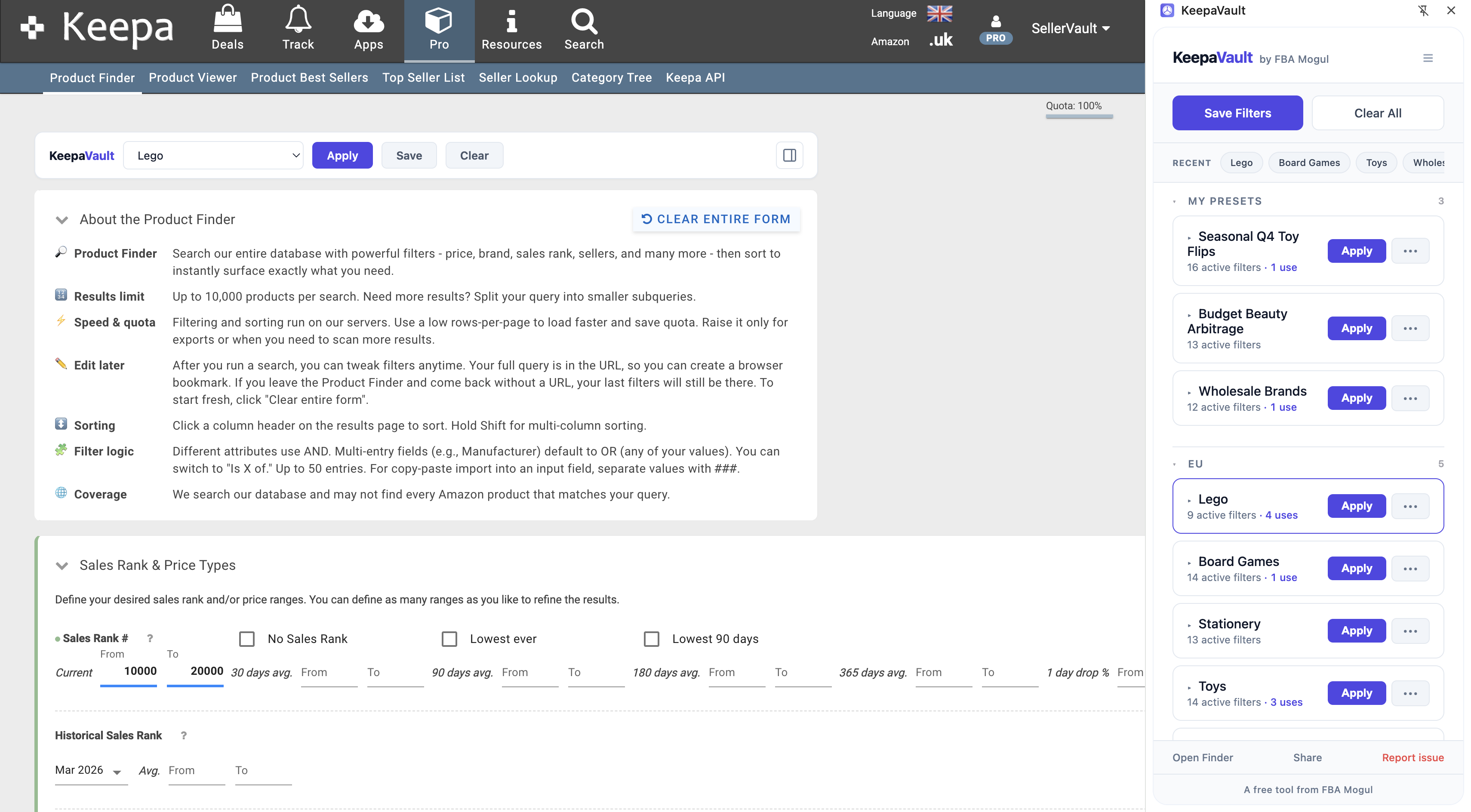
The side panel has the same features as the popup — save, apply, clear, edit, share, reorder — but it stays open instead of closing after each action.
Enabling the side panel
- Open KeepaVault and go to Settings.
- Toggle Open in side panel on Keepa.
When this is on, clicking the KeepaVault icon while on a Keepa page opens the side panel instead of the popup.
Keeping the side panel open after Apply
By default, applying a preset doesn’t close the side panel (unlike the popup, which closes automatically). If you want to quickly apply several presets in a row — testing different filter combinations, for example — this is the mode to use.
You can control this behaviour in Settings with the Keep side panel open after Apply toggle.
Non-Keepa pages
If you navigate away from Keepa while the side panel is open, it switches to a placeholder page that says “Switch to keepa.com to continue” with a one-click link to Keepa Product Finder. The panel can’t be force-closed by the extension (Chrome limitation), but the content is always contextually appropriate.
Popup vs toolbar vs side panel
| Feature | Popup | Toolbar | Side panel |
|---|---|---|---|
| Full preset list | Yes | Dropdown only | Yes |
| Save preset | Yes | Yes | Yes |
| Apply preset | Yes | Yes | Yes |
| Clear filters | Yes | Yes | Yes |
| Edit/clone/delete | Yes | No | Yes |
| Share presets | Yes | No | Yes |
| Drag-and-drop reorder | Yes | No | Yes |
| Settings | Yes | No | Yes |
| Stays open | No | Always | Yes |
Use whichever works for your sourcing workflow — or use all three. They all read from the same preset library.