Sharing presets
How sharing works
You can send any preset to another KeepaVault user by entering their email address. They’ll see it in their Shared with you inbox the next time they open KeepaVault, and can import it into their own library with one click.
The recipient gets a copy of the preset — your original stays untouched. If you update or delete your copy later, theirs isn’t affected.
Sending a preset
- Click the ⋯ menu on the preset you want to share.
- Click Share.
- Enter the recipient’s email address. If you’ve shared with them before, their email will appear as a suggestion.
- Click Share.
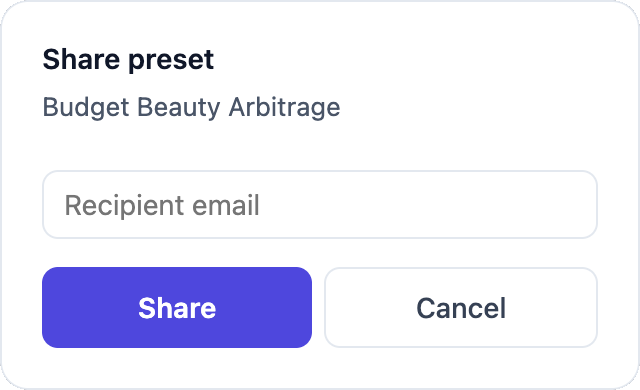
The recipient doesn’t need to do anything special — the shared preset will appear in their KeepaVault automatically.
Receiving a shared preset
When someone shares a preset with you, a Shared with you section appears at the top of your preset list. Each shared preset shows who sent it and how many filters it contains.
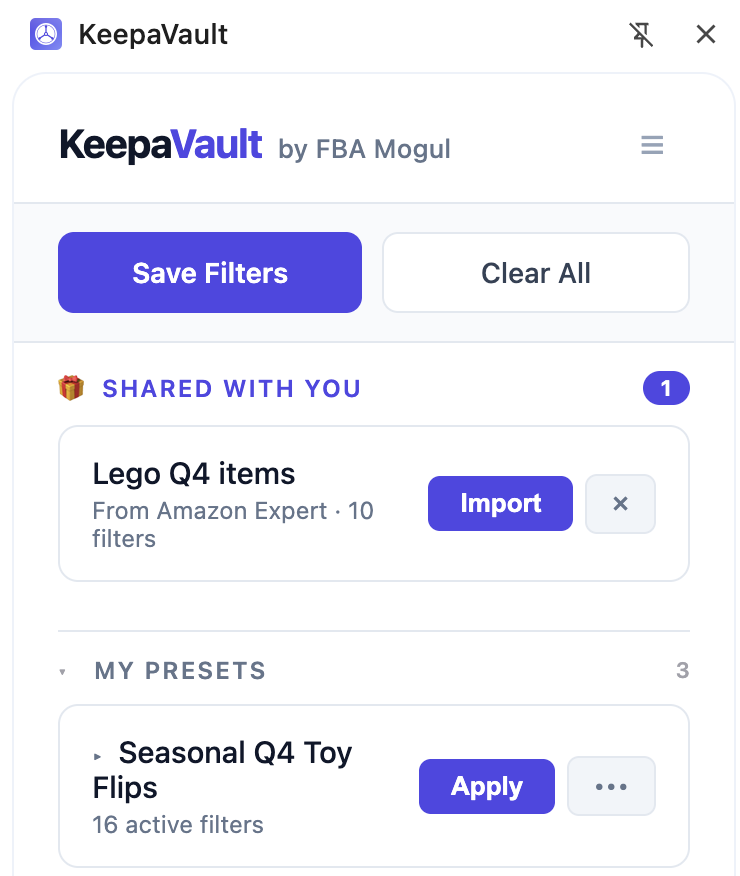
You have two options:
- Import — adds the preset to your library. You can rename it, move it to a different group, or edit it after importing.
- Dismiss — removes it from your inbox without importing. The sender isn’t notified.
Privacy
- The sender only needs your email address. They don’t see whether you’ve imported or dismissed the preset.
- KeepaVault doesn’t reveal whether an email address is registered. If you share to a non-existent account, it silently succeeds — no “user not found” error that could be used to check whether someone has an account.
- Shared presets contain only filter values, not any personal data.