Account & settings
Creating an account
KeepaVault requires an account so your presets are tied to you and synced across devices. Sign up takes about 20 seconds:
- Click the KeepaVault icon in your Chrome toolbar.
- Click Create one.
- Enter your first name, last name, email address, and a password (minimum 8 characters).
- Optionally tell us how you found KeepaVault (this helps us understand where our users come from).
- Click Create Account.
You’re in. No email verification required, no credit card, no trial period.
Logging in
If you’re signed out or using a new browser:
- Click the KeepaVault icon.
- Enter your email and password.
- Click Log In.
Your full preset library loads immediately.
Settings
Open Settings from the footer of the KeepaVault popup or side panel.
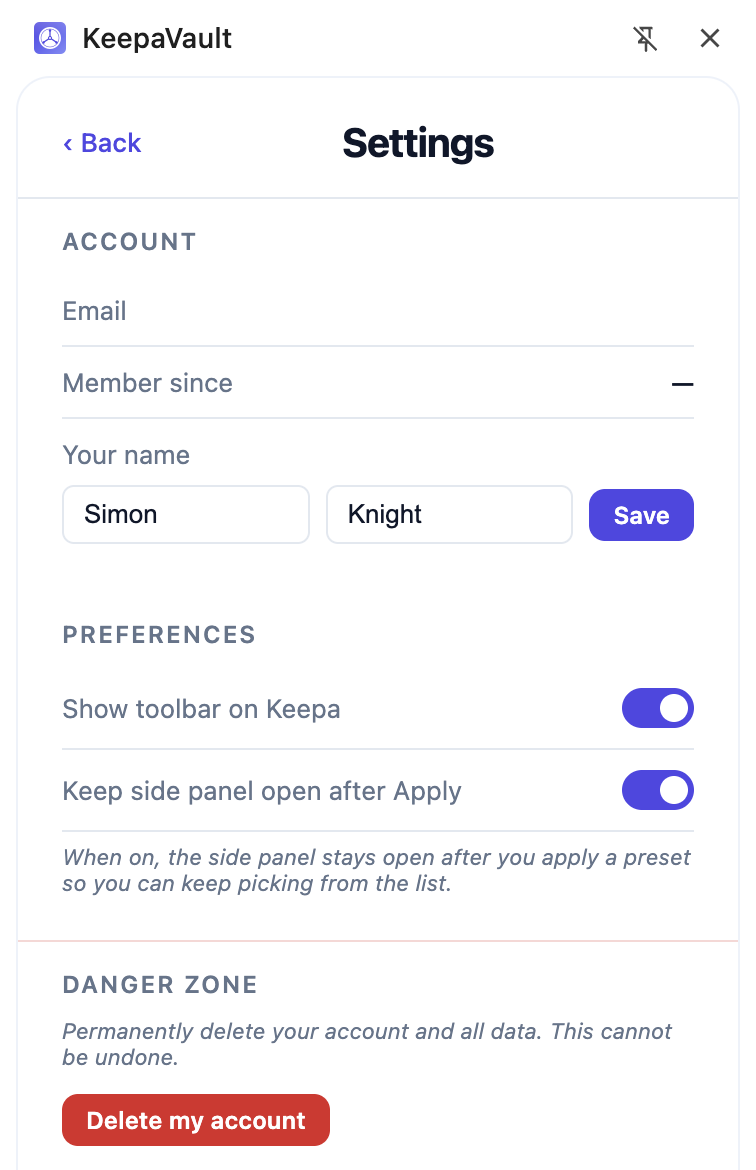
You’ll find:
Account
- Email — the email address your account is registered with. Currently read-only.
- Member since — when you created your account.
- Your name — update your first and last name. Click Save to apply.
Preferences
- Show toolbar on Keepa — toggles the KeepaVault toolbar that appears at the top of Keepa Product Finder. On by default.
- Open in side panel on Keepa — when on, clicking the KeepaVault icon on Keepa opens the side panel instead of the popup.
- Keep side panel open after Apply — when on, the side panel stays open after you apply a preset. Only visible when the side panel is enabled.
Deleting your account
You can permanently delete your account from inside the extension:
- Open KeepaVault and go to Settings.
- Scroll to the bottom and click Delete account.
- Confirm the deletion.
This permanently removes:
- Your account
- All your saved presets
- All shared preset data (sent and received)
- All personal information
This cannot be undone. If you want to use KeepaVault again, you’ll need to create a new account from scratch.
Password reset
If you’ve forgotten your password, contact [email protected] and we’ll help you get back in. A self-service password reset flow is coming in a future update.
Data export
You have the right to export your data at any time. Contact [email protected] with your request. A one-click export feature is planned for a future update.
Reporting an issue
If something breaks or behaves unexpectedly, you can report it directly from inside the extension.
- Open KeepaVault and click Report issue in the footer.
- Optionally select which preset the issue relates to.
- Describe the problem in as much detail as you can.
- Click Submit.
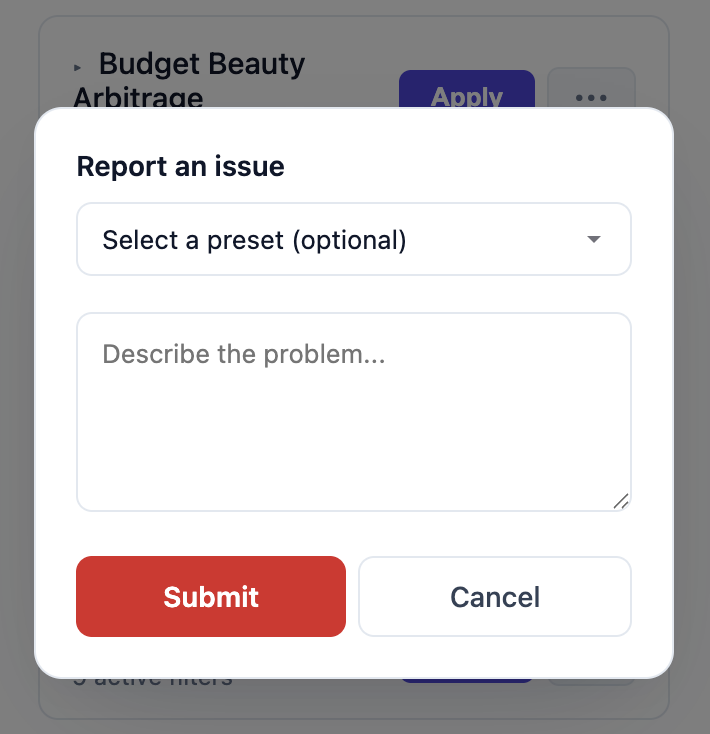
Your report goes straight to us. We read every one.