Getting started
1. Install the extension
Visit the Chrome Web Store listing and click Add to Chrome. KeepaVault only needs permission to run on keepa.com — that’s it.
2. Create your free account
Click the KeepaVault icon in your Chrome toolbar. You’ll see the login screen.
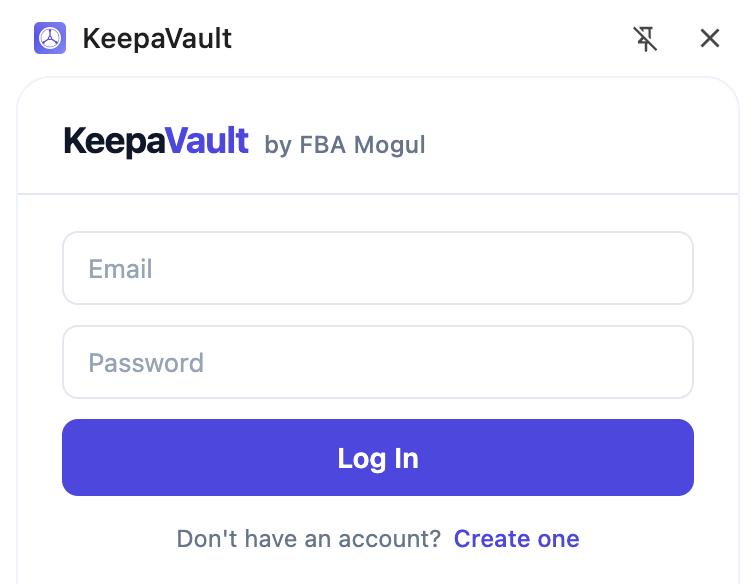
Click Create one to sign up. Enter your first name, last name, email, and a password (minimum 8 characters). The whole process takes about 20 seconds. No credit card required — KeepaVault is free forever.
3. Save your first preset
- Open Keepa Product Finder in a tab.
- Set up the filters you normally use — price range, sales rank, number of sellers, Buy Box percentage, whatever you care about.
- Click Save Filters in the KeepaVault popup (or the toolbar if you have it enabled).
- Give your preset a name and optionally a description and group.
- Click Save.
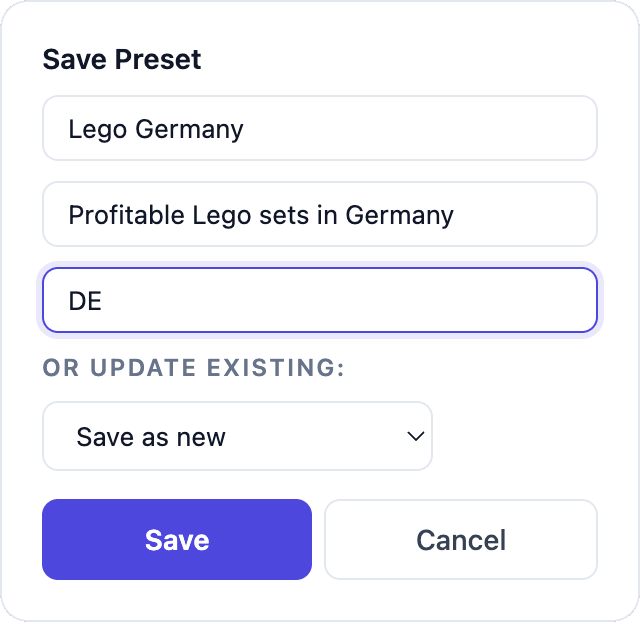
Your preset is now saved to your account and synced across every Chrome you sign into.
4. Apply it tomorrow
Open KeepaVault, find your preset in the list, and click Apply. All your filter values populate instantly — every field, every checkbox, every dropdown. Done.
What’s next?
- Saving presets — naming, descriptions, groups, and updating existing presets
- Applying presets — popup, toolbar, and side panel
- Organising presets — groups, drag-and-drop, cloning
- Sharing presets — send presets to other sellers by email
- Toolbar & side panel — the toolbar injected into Keepa and the Chrome side panel
- Account & settings — profile, preferences, deleting your account
- Keepa locales — using KeepaVault across different Keepa country sites